PaperColor
EyewindArt & Design
4.512.97K Reviews
- Version
- 2.9.15
- Installs
- 50.00M
- Age Rating
- Everyone
Screenshots
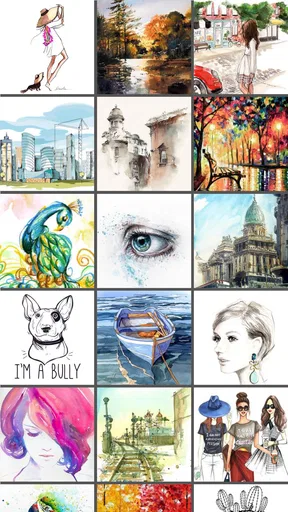
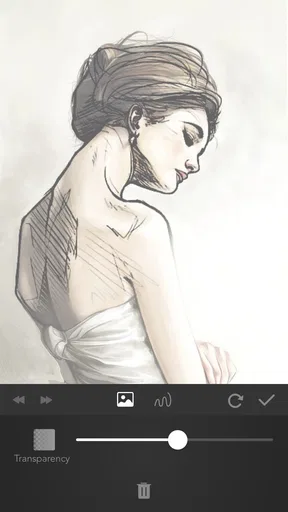
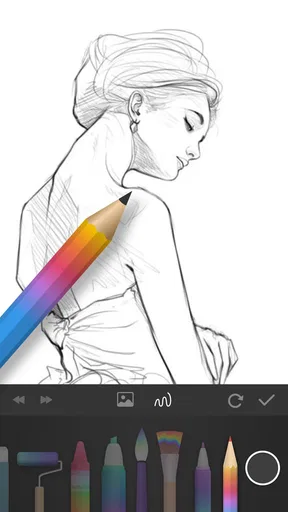
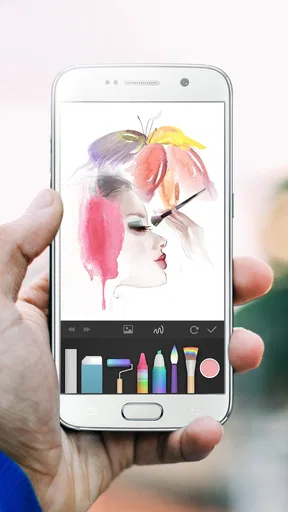
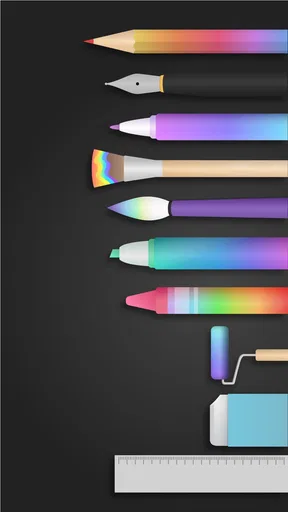
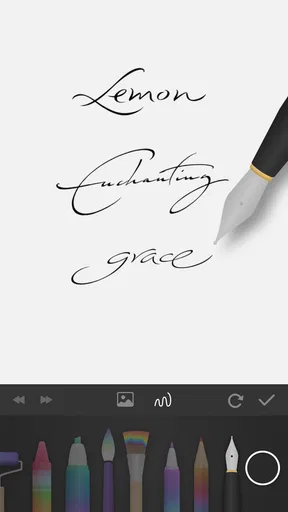
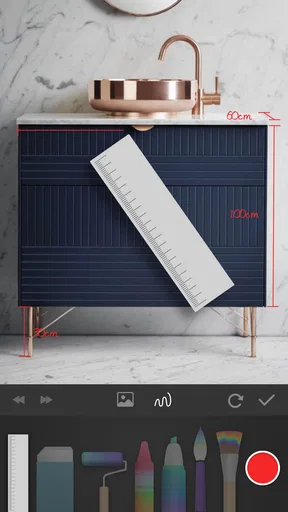
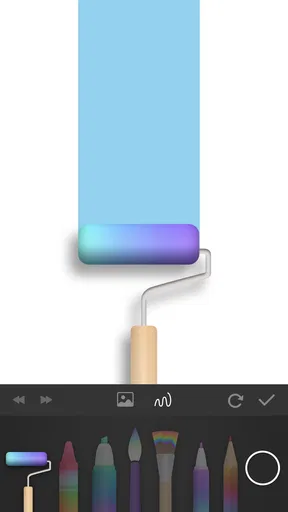
Our Review of PaperColor
 Analysis by Appyee
I opened PaperColor expecting a lightweight sketching app rather than a full digital art studio, and that is still the fairest way to understand it. Developed by Eyewind, this free Art & Design app focuses on making a phone or tablet feel closer to a sheet of paper and a brush. Its appeal is immediate: you can begin with an idea, choose a drawing tool, and put marks on the screen without first learning a complicated interface.
That simplicity explains why it has reached over 50 million installs and holds a 4.5 average from around 219 thousand ratings. Those figures do not make it perfect, but they do show that the app has found a useful middle ground between a blank notebook and a professional illustration package. I would recommend it most readily to casual artists, students, visual note-takers, and anyone who wants to sketch without carrying a separate pad.
From a quick idea to a finished sketch
I find the most useful way to judge PaperColor is to start with the moment an idea appears, before worrying about a polished result. A short sketch can clarify what I want to make and show me whether the concept has enough shape to develop. From there, the next heading turns to how that quick start changes when I keep drawing and ask the app to handle a longer session.
Starting with the right expectation
The first important decision is not which brush to use; it is deciding what kind of work you want to finish. PaperColor is well suited to a quick drawing, a rough composition, a handwritten reminder, a coloring exercise, or a small illustration made during a spare moment. It feels more approachable than a feature-heavy drawing suite because the basic action is familiar: touch the canvas and draw.
I would not choose it as my only tool for a long professional project that depends on advanced layer management, precise vector editing, complex typography, or a large production pipeline. A dedicated desktop program or a more specialized mobile art app will usually be a better fit for those jobs. PaperColor earns its place through low friction, not through trying to replace every other creative tool.
The app is free to install and is rated for Everyone, which makes it easy to recommend for family use, classroom experimentation, and beginners. There are optional in-app purchases ranging from $0.99 to $27.99 per item, so I would treat the free version as a chance to test the workflow before spending anything. The sensible approach is to see whether its drawing feel matches your habits first, rather than assuming every available option is necessary.
Building the first image
My preferred starting workflow is deliberately simple. I begin with a loose outline instead of trying to make the first stroke perfect. This matters on a small touchscreen, where hesitation can be more distracting than the drawing itself. A rough pass lets me judge scale and placement before I spend time on details.
PaperColor’s paper-like approach is especially comfortable for this stage. It encourages me to think in strokes and shapes rather than menus and technical settings. For a quick object study, I can block in the silhouette, add a few interior marks, and then decide whether the image needs color or should remain a monochrome sketch. That decision is easier when the app does not make the opening screen feel like a control panel.
One useful habit is to zoom out mentally, even when the screen is small. I work from broad forms toward small accents and avoid polishing one corner too early. On a phone, this keeps the composition from becoming cramped. On a larger tablet, it helps prevent the opposite problem: adding detail simply because there is room for it.
The brush imitation is most convincing when I use it as part of a drawing rhythm rather than expecting physical media to be reproduced exactly. Short, confident strokes tend to look more intentional than slow dragging. If you are coming from pencil and paper, the adjustment is quick; if you expect the same tactile resistance as a real brush, the glass surface will still feel different.
A practical everyday workflow
Imagine I am waiting for a meeting and notice a product display that gives me an idea for a poster. I can open the app, sketch the outer shape, test a few visual directions, and save the strongest version before the meeting begins. Later, I can use that sketch as a reference when creating the final design elsewhere. This is where PaperColor is genuinely useful: it captures visual thinking before the idea disappears.
For a student, the same process works for turning a lesson into a visual summary. I might draw a simple diagram, use color to separate stages, and keep the image focused on relationships rather than decoration. The app is not replacing a dedicated note-taking system, but it can make a concept easier to remember when handwriting or drawing communicates more clearly than typed text.
For a parent or beginner, a short coloring session is another natural use. The low barrier means the user can experiment without understanding professional terminology. I would still supervise younger children in the same way I would with any device-based creative activity, especially if optional purchases are visible on the device.
Moving from sketch to refinement
Once the initial idea works, I refine it in passes. First I correct the most obvious proportions. Next I strengthen the lines that should guide the eye. Only after that do I add color or small decorative marks. This order is more important than it sounds: on a touchscreen, excessive detail can hide a weak structure, while a clean outline can make a simple drawing feel finished.
A useful trade-off is speed versus control. PaperColor makes the first ten minutes pleasant, but a detailed image may demand more patience than a professional drawing application. If I need exact alignment or repeated elements, I would rather create the concept here and hand it off to another tool for the final construction. That division of labor keeps the app in the role where it performs best.
I also avoid treating every mark as permanent. Sketching is more productive when I allow myself to make a bad line and continue. The app’s value is partly psychological: a simple canvas makes experimentation feel less costly. Beginners often improve faster when they produce several imperfect studies instead of trying to finish one flawless picture.
Handoffs to other parts of a creative project
PaperColor works well as the first stage in a wider workflow. I might use it to explore a logo shape, a character pose, a room layout, or a color mood, then pass the resulting image to a designer, teacher, client, or another editing application. The handoff is clearest when I label the purpose of the sketch in my own notes: reference, composition draft, color test, or finished casual illustration.
That distinction prevents disappointment. A rough sketch can be successful even if it is not ready for publication. When I share it with someone else, I explain what should be preserved and what is still provisional. For example, the pose may be important while the background is only a placeholder. This makes PaperColor more useful in collaboration because the recipient understands the image as a visual instruction rather than a final asset.
The app is also a practical companion for people who normally work with physical materials. I can photograph or remember a reference, make a digital study, and compare several ideas without using paper for every attempt. Conversely, a paper sketch can inspire a redraw in the app when I want a cleaner version to send or archive. The strength is not that one medium replaces the other; it is that the app reduces the distance between an idea and a shareable draft.
For a professional handoff, I would check the image carefully before sending it. Small-screen drawings can look clearer while I am working than they do on a larger display. I would inspect edges, confirm that important marks are visible, and avoid presenting a quick draft as a high-resolution production file. That extra check is a simple way to prevent a casual sketching tool from creating confusion later.
What the finished result feels like
The best results have a personal, drawn quality rather than a sterile digital finish. That suits concept sketches, informal illustrations, visual journals, and practice exercises. I like that the result can retain the energy of the first idea instead of becoming buried under technical adjustments.
At the same time, the paper imitation is not magic. A screen cannot provide the exact drag, pressure, texture, or resistance of physical materials, and the final appearance depends heavily on the device and the user’s touch. Someone with a stylus may find the experience more natural than someone drawing with a fingertip, but I would still judge the app by its convenience rather than by expecting a complete replacement for a studio setup.
The finished image is most satisfying when I accept the app’s visual character. If I want a clean geometric poster, a polished interface mock-up, or precise technical artwork, I may spend more time fighting the medium than creating. If I want an expressive sketch that communicates an idea quickly, the same qualities become advantages.
Where the workflow begins to break
The main friction appears when a small sketch grows into a demanding project. A simple interface is helpful at the beginning, but it can feel limiting when I need more elaborate organization or exact control. The app’s category and presentation make its purpose clear: it is a drawing companion, not an all-purpose design workstation.
There is also a learning curve hidden inside simplicity. A beginner may start immediately, but producing a convincing image still requires practice with proportions, line confidence, color choices, and composition. PaperColor can remove technical obstacles, but it cannot replace those artistic skills. I would recommend short, repeatable exercises rather than expecting the first drawing to look professional.
Optional purchases are another point to consider. Because the app is free, I can explore it without an initial payment, but the presence of paid items means I should pay attention before confirming a purchase. This is particularly relevant on a shared family device. I would let a child use the creative tools while keeping purchasing decisions with an adult.
The current version is 2.9.15 and it requires Android 5.0 or later. That makes it accessible to many older Android devices, although the actual comfort of drawing will still depend on screen size, responsiveness, and available storage. A budget phone can be enough for a quick sketch, but a larger display is easier for detail work and a stylus can make long sessions less tiring.
Who should use it, and who should choose something else?
I see PaperColor as a strong choice for someone who wants to draw now rather than study a complicated application first. It is especially suitable for casual sketchers, beginners, children with supervision, students making visual notes, and artists who need a portable idea pad. The free entry point also makes it reasonable for anyone who wants to test digital drawing before investing in a more advanced setup.
I would look elsewhere if my priority were professional illustration management, exact graphic design, extensive editing controls, or a carefully structured multi-stage production process. A specialized alternative will be better when precision, repeatability, or export-oriented work matters more than immediacy. I would also skip it if I dislike drawing on glass or if my projects depend on the tactile feedback of real paper and paint.
Compared with a physical sketchbook, PaperColor is easier to carry, easier to revise, and more convenient when I need a digital draft. Compared with a full mobile art suite, it is less intimidating and faster to open, but likely less suitable for complex projects. Compared with a basic note app, it provides a more deliberate drawing experience, which is useful when the image itself is the message.
My final recommendation after following the full workflow
After using it from the first rough mark through a shareable sketch, I think Eyewind has made a sensible choice by keeping the experience approachable. The app does not ask me to become a technician before I can draw. It gives me a practical way to capture ideas, practice visual skills, and create informal artwork on an Android device.
My recommendation comes with a clear boundary: use it as a fast, friendly sketchbook, not as a promise of a complete professional studio. Start with a small project, try the free tools, test the drawing feel on your device, and only consider an optional purchase if it solves a need you have actually encountered. That workflow lets you judge the app honestly.
For me, the deciding strength is the handoff from thought to image. When I need to show someone what I mean, explore a composition, or keep a creative idea alive during an ordinary day, PaperColor gets out of the way. If your goal is quick, expressive digital sketching with a paper-inspired feel, it is worth trying.
Verdict
Strengths of PaperColor
- Natural-feeling brushes make sketching and coloring enjoyable.
- Layers help organize detailed drawings and edits.
- Stylus support enables more precise control than finger drawing.
- Built-in templates can help beginners start creative projects quickly.
- The interface is simple enough for casual users to learn easily.
Limitations of PaperColor
- Some useful brushes and tools may require in-app purchases.
- Ads can interrupt the experience in the free version.
- Advanced artwork may be limited by the app’s layer capabilities.
- Export options and supported formats may feel basic for professionals.
- Large, detailed projects can use considerable device storage and memory.
Other Releases by Eyewind
View All
Cross Stitch: Color by Number
Board4.4
Similar Picks in This Category
View All
Canva: AI Photo & Video Editor
Canva4.8

PENUP – Drawing-sharing SNS
Samsung Electronics Co., Ltd.4.5

Crafto
Kutumb App4.6

Sketchbook
Sketchbook4.1

ibis Paint X
ibis inc.4.5

Adobe Express: AI Photo, Video
Adobe4.6
Frequently Asked Questions
What is PaperColor, and what can I use it for?
PaperColor is a digital drawing and painting app designed for Android and iOS users who want to sketch, color, or create illustrations on a mobile device. It offers a paper-like canvas, multiple brushes, color tools, and options for saving or sharing artwork. It can be used for casual doodling, practicing drawing, taking visual notes, or creating more detailed digital paintings.
Is PaperColor suitable for beginners who have never used a drawing app?
Yes. PaperColor is generally approachable for beginners because its interface focuses on familiar tools such as pencils, brushes, erasers, colors, and canvas controls. New users can start with simple sketches and gradually experiment with brush sizes, opacity, and layering options where available. However, some advanced features may require practice, especially if you want precise illustrations or realistic-looking digital paintings.
Does PaperColor work well with a stylus or pressure-sensitive pen?
PaperColor can be used with a finger, but drawing with a compatible stylus usually provides better control and a more natural experience. Depending on your device and the app version, pressure sensitivity and palm-rejection support may vary. Before downloading, check the current store description and your device compatibility, particularly if you plan to use PaperColor for detailed artwork rather than occasional sketches.
Is PaperColor free to download, and are there advertisements or in-app purchases?
PaperColor may be available as a free download, but the exact features, advertisements, and payment options can differ between Android and iOS versions. Some tools, brushes, materials, or other functions may be restricted behind in-app purchases, while the free edition may display advertising. Review the app-store listing and purchase details before installing so you understand what is included without payment.
Can I save, export, or share drawings created in PaperColor?
PaperColor is intended to let users preserve their artwork and share completed drawings, although the available export formats and sharing options can depend on the platform and current version. Finished images may typically be saved to the device or sent through supported apps such as messaging and social networks. Check storage permissions and export settings if your artwork does not appear in your gallery immediately.
